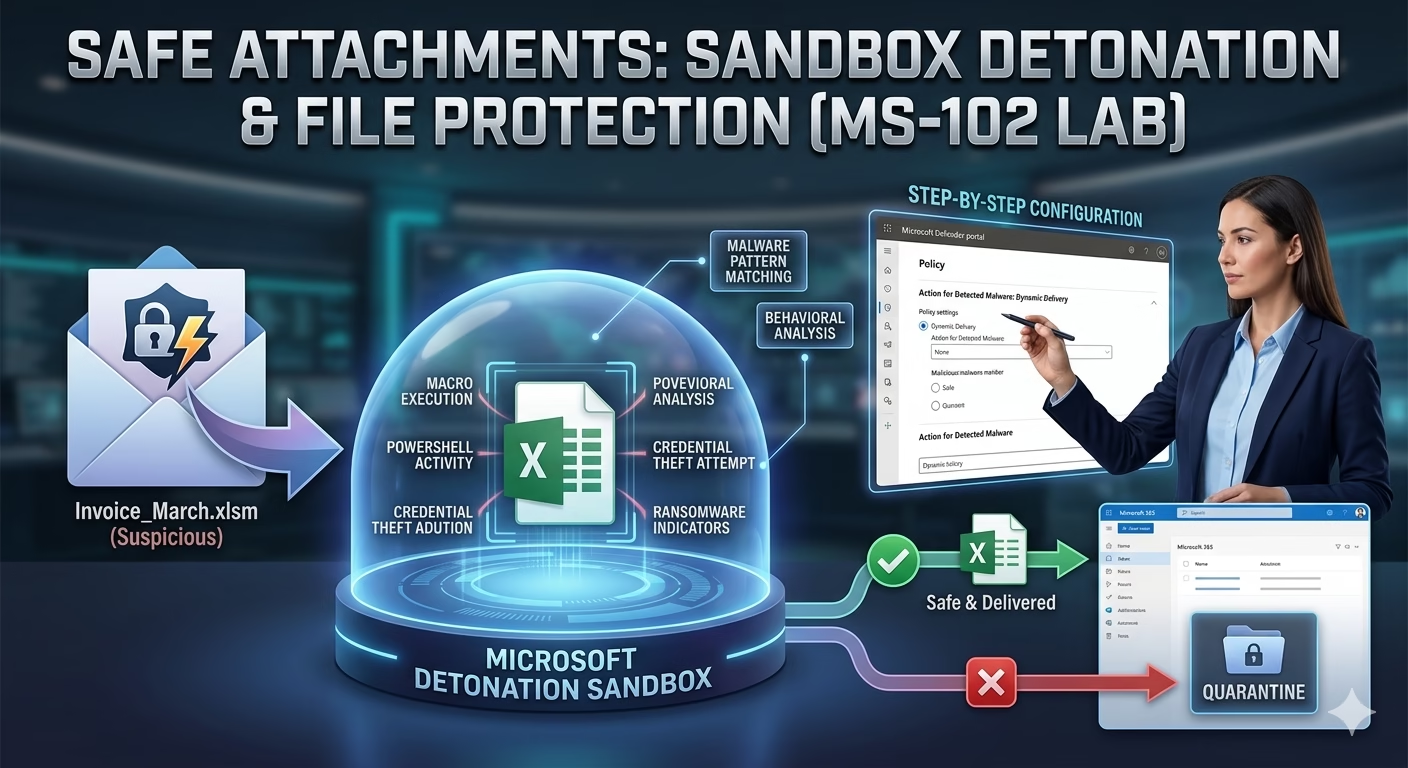
Safe Attachments in Microsoft Defender provides a robust sandbox environment to detonate and analyze suspicious files before they reach your users. While basic antivirus software relies on known signatures, Safe Attachments in Microsoft Defender uses behavioral analysis to catch zero-day threats that other tools miss.
Even trained users can accidentally open harmful files, especially when attackers disguise them as invoices, HR documents, password resets, or urgent internal requests.
This is where Safe Attachments in Microsoft Defender for Office 365 becomes critical.
For anyone preparing for the MS-102: Microsoft 365 Administrator certification, understanding Safe Attachments is essential because it directly impacts email security, threat prevention, and Microsoft Defender policy management.
In this guide, we’ll cover:
- What Safe Attachments is
- How it works
- Why it matters
- Step-by-step configuration in security.microsoft.com
- Best practices for enterprise environments
- MS-102 exam tips
What are Safe Attachments in Microsoft Defender for Office 365?
Safe Attachments is a feature in Microsoft Defender for Office 365 that scans email attachments for malicious behavior before users can open them.
Instead of checking files using signature-based antivirus only, Microsoft uses:
- Sandbox detonation
- Dynamic malware analysis
- Machine learning detection
- Threat intelligence
- Behavioral analysis
This helps stop:
- Ransomware
- Trojans
- Malware payloads
- Malicious macros
- Zero-day attacks
- Business Email Compromise (BEC)
Even if the attachment is brand new and unknown to traditional antivirus tools.
Why Safe Attachments Matter
While traditional antivirus software relies on static signatures, Safe Attachments in Microsoft Defender provides a dynamic ‘detonation’ layer that catches polymorphic malware before it can execute on a user’s device.
Traditional antivirus checks files based on known signatures.
But modern attackers create:
- New malware variants
- Encrypted attachments
- Delayed execution payloads
- Weaponized Office files
These often bypass standard antivirus.
Example:
An attacker sends:
Invoice_March_2026.xlsm
It looks like a normal invoice.
But when opened, it runs malicious macros that download ransomware.
Without Safe Attachments:
User opens file → malware executes.
With Safe Attachments:
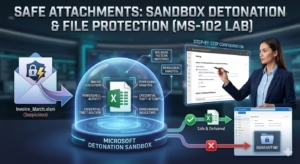
Microsoft detonates the file in a secure sandbox → threat detected → file blocked.
This is why Safe Attachments is one of the strongest protections in Microsoft 365.
How Safe Attachments in Microsoft Defender Protects Your Environment
The detonation process within Safe Attachments in Microsoft Defender ensures that even encrypted or macro-heavy files are analyzed in a secure virtual environment.
Step 1: Email Arrives with Attachment
An email enters Exchange Online containing an attachment.
Example:
- Excel file
- Word document
- ZIP archive
Step 2: Attachment is Sent to Microsoft Sandbox
Microsoft opens the file in a secure virtual environment.
This is called:
DetonationThe file is executed safely without risking your environment.
Step 3: Behavior Analysis Begins
Microsoft checks for:
- Macro execution
- Malware downloads
- Suspicious PowerShell activity
- Credential theft behavior
- Command-and-control communication
- Registry changes
- Ransomware indicators
This is far beyond traditional antivirus.
Step 4: Final Decision
If Safe
The file is delivered normally.
If Malicious
The file is:
- Blocked
- Quarantined
- Replaced
- Redirected
Depending on your policy settings.
Admins can investigate from the Defender portal.
Safe Attachments Policy Actions Explained
This is one of the most important MS-102 topics.
Monitor Mode
The file is delivered, but Microsoft tracks suspicious behavior.
Recommended for:
- Testing
- Pilot rollout
Not ideal for production.
Block Mode
The file is blocked completely.
Recommended for:
- Finance teams
- HR teams
- VIP users
- Admin accounts
- High-risk departments
Strongest protection.
Replace Mode
The malicious attachment is removed and replaced with a warning message.
Useful when users need visibility that something was blocked.
Common enterprise choice.
Dynamic Delivery
The email body is delivered immediately, while the attachment is scanned separately.
Users do not wait for the full detonation process.
Best balance of:
- Security
- User experience
Highly recommended for large organizations.
Step-by-Step Guide: Configuring Safe Attachments in Microsoft Defender
When you navigate to the Defender portal, your goal is to create a custom policy for Safe Attachments in Microsoft Defender that applies specifically to your high-risk user groups.
This is critical for both real-world admin work and the MS-102 exam.
Step 1: Open Microsoft Defender Portal
Go to: Microsoft Defender Portal
URL: security.microsoft.com
Sign in using:
- Global Administrator
- Security Administrator
- Exchange Administrator
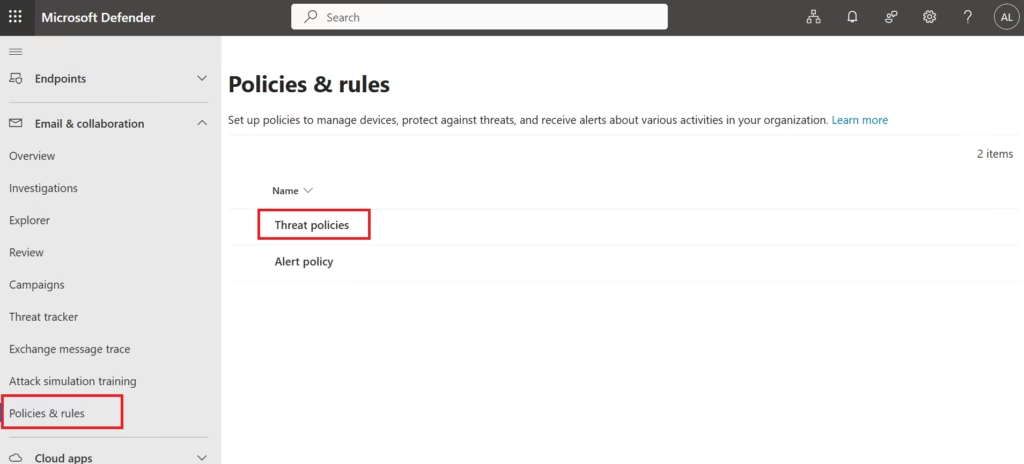
Step 2: Navigate to Threat Policies
From the left menu:
Email & Collaboration
→ Policies & Rules
→ Threat Policies
Step 3: Open Safe Attachments
Under:
Policies
Select:
Safe Attachments
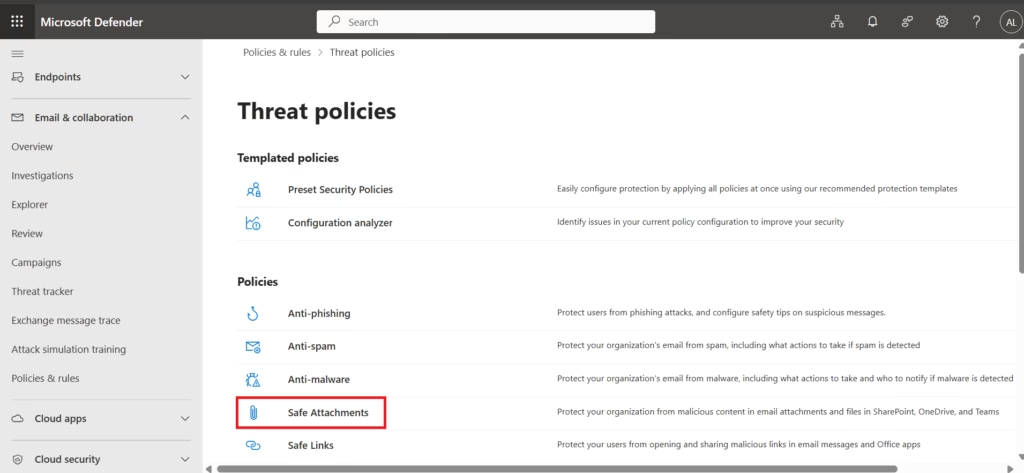
Here you will see:
- Built-in protection (Microsoft)
Recommended:
Create a custom policy.
Step 4: Click Create Policy
Choose:
Create
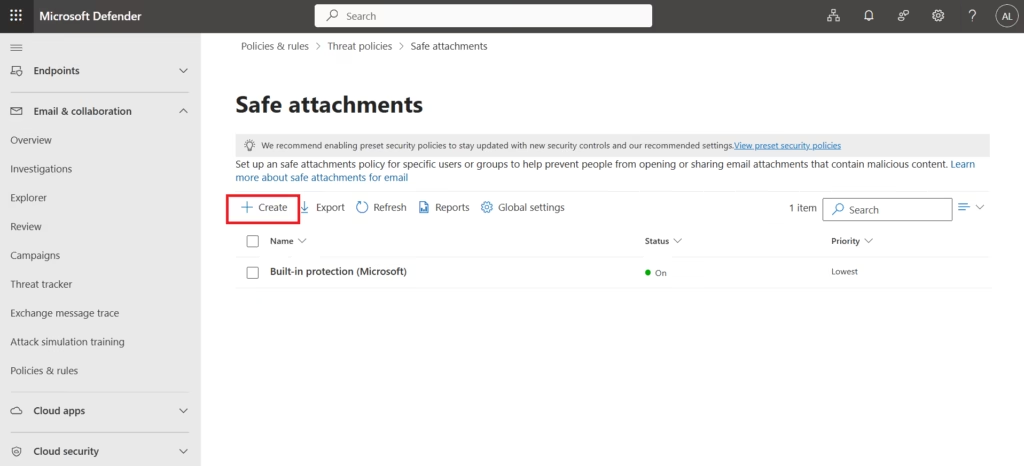
This opens the policy wizard.
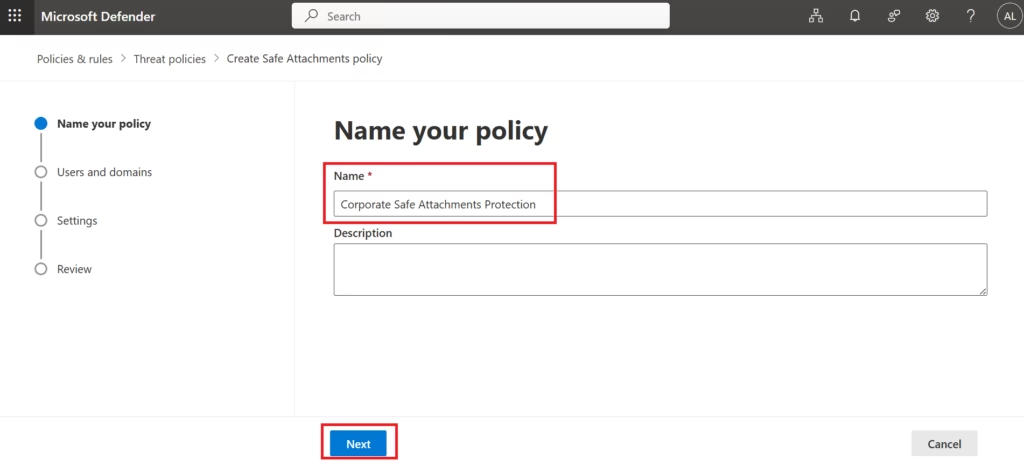
Step 5: Name the Policy
Example:
Corporate Safe Attachments Protection
Add:
- Description
Always document policies properly.
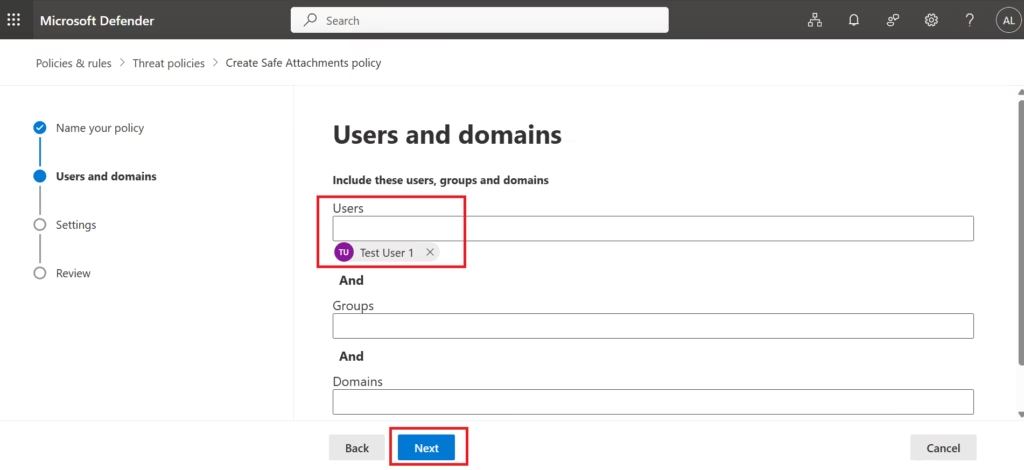
Step 6: Select Users, Groups, or Domains
Choose the scope:
You can apply to:
- Specific users
- User groups
- Entire domains
- All recipients
Best practice:
Start with pilot users → expand gradually.
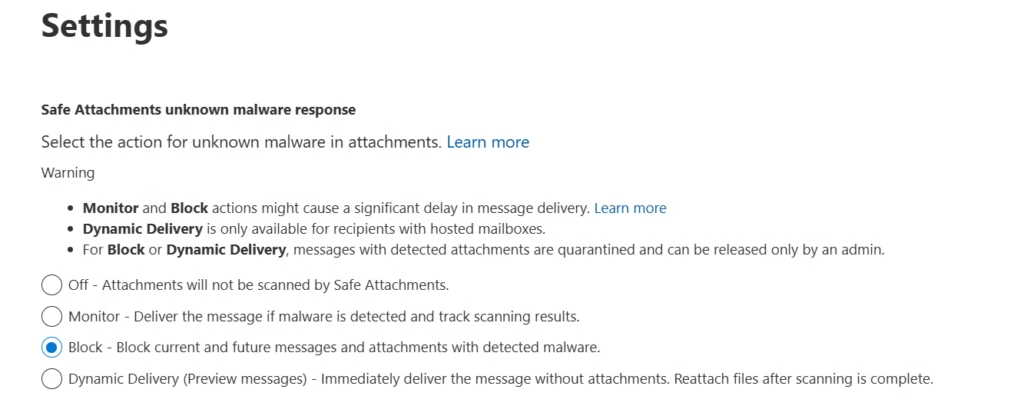
Step 7: Configure Protection Settings
This is the most important step.
Recommended Settings
Action for Detected Malware
Choose either:
Dynamic Delivery
or
Block
Depending on your organization’s security requirements and business operations.
- Dynamic Delivery is recommended for standard users because the email body is delivered immediately, while the attachment is scanned separately. Safe files are reattached after scanning is completed, providing a better user experience.
- Block is recommended for high-risk users such as Finance, HR, VIPs, executives, and admin accounts because it provides the strongest protection by completely blocking malicious attachments before users can access them.
Choosing the right action, such as Dynamic Delivery, is the most critical part of setting up Safe Attachments in Microsoft Defender, as it balances high-level security with seamless user productivity.
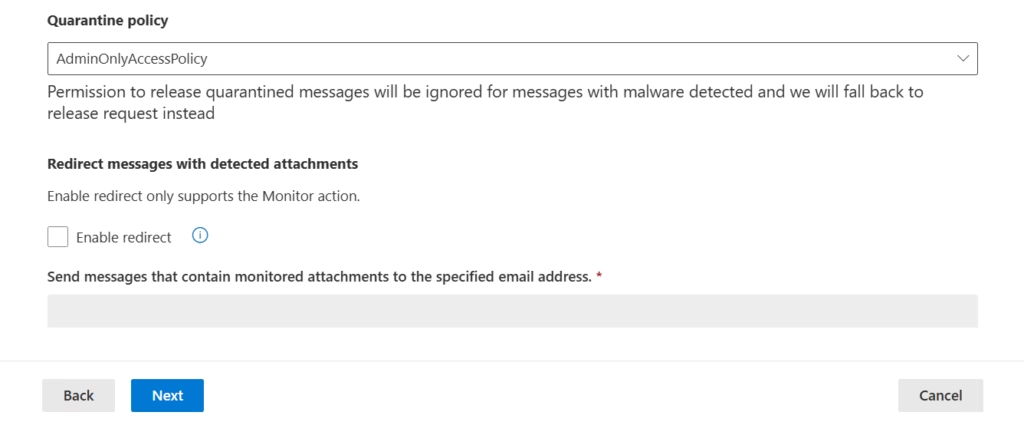
Redirect Attachments
This is optional and mainly useful for advanced SOC and security investigation workflows.
You can redirect detected malicious attachments to:
- Security mailbox
- Investigation mailbox
- SOC monitoring inbox
This helps security teams analyze threats before taking final action.
Note: Redirect is supported only when using Monitor Mode.
Apply to Internal Senders
Highly recommended.
Many attacks originate from compromised internal accounts, so internal email should never be trusted automatically.
Enabling Safe Attachments for internal senders improves protection against insider threats and account compromise.
Protect SharePoint, OneDrive, and Teams
When configuring Safe Attachments in Microsoft Defender, ensure you enable protection for SharePoint, OneDrive, and Teams to close the gap on lateral threat movement.
Many administrators focus only on email security, but attackers often target collaboration platforms like:
- SharePoint Online
- OneDrive for Business
- Microsoft Teams
Always enable protection for these workloads if your licensing supports it, because modern attacks happen beyond just email.
Step 8: Review and Submit
Review all settings carefully.
Click:
Submit
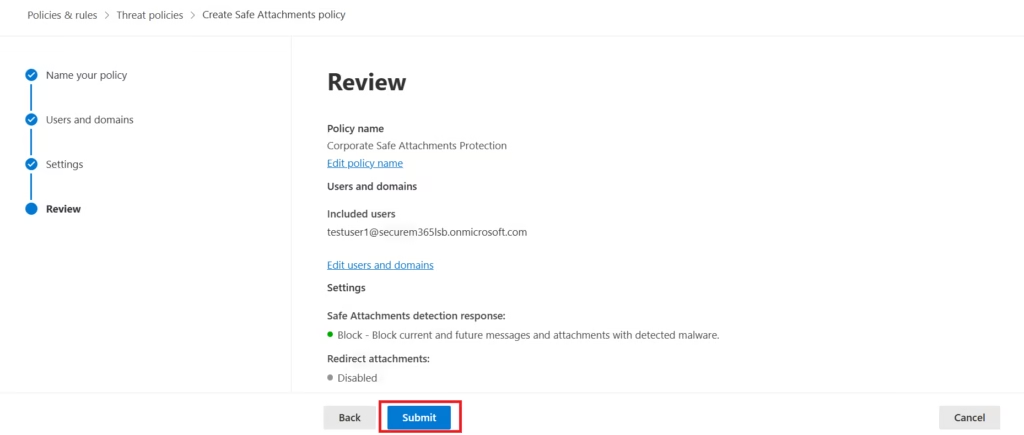
Your Safe Attachments policy becomes active.
Propagation may take time across Microsoft 365 services.
Step 9: Validate the Policy
Always test security controls.
Recommended:
- Send a test malware simulation file
- Confirm sandbox scanning
- Verify quarantine behavior
- Validate user notification flow
Never deploy security without validation.
Best Practices from Real-World Infrastructure Teams
As a senior infrastructure, I recommend that Safe Attachments in Microsoft Defender be applied to both internal and external senders, as compromised internal accounts are a primary vector for ransomware.
Use Dynamic Delivery for Standard Users
Best user experience + strong protection.
Excellent for large organizations.
Use Block Mode for High-Risk Users
Especially:
- Finance
- HR
- Leadership
- IT Admins
- Privileged accounts
Attackers target them first.
Protect Internal Mail
Internal compromise is common.
Do not trust internal email by default.
Enable Protection for Teams + SharePoint + OneDrive
Modern attacks happen outside email too.
Secure collaboration workloads.
Combine Safe Attachments + Safe Links
Best practice:
- Safe Links = URL protection
- Safe Attachments = File protection
Both should always work together.
Layered defense wins.
Safe Links vs Safe Attachments
| Feature | Safe Links | Safe Attachments |
|---|---|---|
| Protects | URLs | Files |
| Detects | Phishing links | Malware attachments |
| Trigger Time | Click-time | Pre-delivery + sandbox |
| Common Threat | Credential theft | Malware infection |
Both are part of Microsoft Defender for Office 365.
Both are critical.
Licensing Requirements
Safe Attachments requires:
- Defender for Office 365 Plan 1
- Defender for Office 365 Plan 2
It is not included in Exchange Online Protection alone.
This is a common MS-102 exam question.
MS-102 Exam Tip
Remember for the MS-102 that Safe Attachments in Microsoft Defender isn’t just for email; it also extends its protection to files stored in SharePoint, OneDrive, and Teams.
Scenario:
“A company wants to scan email attachments for malware before users can open them.”
Correct answer:
Safe Attachments
Not:
- Safe Links
- Anti-spam policy
- Mail flow rules
- Exchange transport rules
This is a common exam trap.
Senior Engineer Pro-Tip: "On the MS-102, pay very close attention to the 'Dynamic Delivery' option. The exam loves to ask how to 'provide immediate access to the email body while scanning attachments.' If you see 'immediate access' and 'scanning' in the same sentence, Dynamic Delivery is your answer. Also, remember that Redirect only works in Monitor mode don't get tricked into thinking you can redirect and block simultaneously!"Common Admin Mistakes
Only Protecting External Mail
Bad practice.
Internal attacks are real.
Using Monitor Mode Forever
Monitor mode is for testing, not production.
Ignoring Teams + SharePoint Protection
Huge blind spot.
Very common mistake.
Not Testing After Deployment
Security without validation is dangerous.
Always test.
Final Thoughts
Links steal credentials.
Attachments deploy malware.
You need protection for both.
Safe Attachments is not optional—it is a core defense layer for modern Microsoft 365 security.
For MS-102 candidates, it is exam-critical.
For administrators, it is business-critical.
Because sometimes:
One attachment is enough.
Safe Attachments helps make sure it never reaches the user.
By mastering Safe Attachments in Microsoft Defender, you aren't just checking a box for the MS-102; you are implementing a sophisticated behavioral defense that stops modern threats in their tracksNext in the MS-102 Security Series: Anti‑Spam & Anti‑Malware Protection in Microsoft 365 (MS‑102 Guide)Explained
Previous Topic
If you haven’t read it yet: Safe Links in Microsoft Defender: Essential MS-102 Guide & Lab
Start from the Beginning
MS-102 Microsoft 365 Administrator Overview
https://techcertguide.blog/ms-102-microsoft-365-administration
Official Microsoft Reference
https://learn.microsoft.com/en-us/certifications/exams/ms-102CategoriesMS-102
1 thought on “Safe Attachments in Microsoft Defender: Essential MS-102 Lab & Guide”